Media types and generators
AI Media has no media types of its own. Each generator saves into one of the site's media types, chosen on the settings page: generated images become Image media, generated SVGs SVG Image media, generated videos Video media. You keep the names, fields, displays and permissions you already have.
Choose the media type of each generator
In Configuration > AI > AI Media, the Generators table has a Media type column. Each select lists only the media types the generator can save into:
- the type's source is the one the generator makes files for: core's Image source for the Image and SVG generators, core's Video file source for the Video generator;
- the type's source field accepts at least one of the files the generator writes: png, jpg or webp for images, svg for SVGs, mp4 for videos.
The shipped choices are image for Image, svg_image for SVG and video
for Video, the IDs core's recipes, Drupal CMS and Varbase use. A generator set
to None, or to a media type that does not exist or no longer fits, has no
tab and no generator anywhere; nothing breaks. One media type holds one
generator.
An SVG Image type is an Image source whose field allows svg. Uploading SVG
files there needs a module that lets image fields accept them, such as SVG
Image; generated SVGs need nothing more.
Recipes set the same mapping with a config action:
ai_media.settings:
  setAiMediaTypes:
    image: image
    svg: svg_image
The tabs in the Media Library
Where a media type with a generator is allowed, its AI tab follows its own tab: Image, Generate image with AI, SVG Image, Generate SVG with AI. The AI tab opens the same media type in AI mode: the generator replaces the upload, and the result goes through core's review step and is saved as that type. The type's own tab still uploads, with whatever upload form the site gives it: core's, or another module's such as DropzoneJS on Varbase. A field that allows only one media type still gets the two tabs, though core shows no tabs for a single type.
A media type is allowed in the Media Library:
- on a media reference field: tick it under Media types in the field settings, and order it in the field widget's Tab order;
- in the editor: tick it in the text format's Embed media filter.
The AI tab then appears for users with Generate media with AI and create access for that media type. See Permissions.
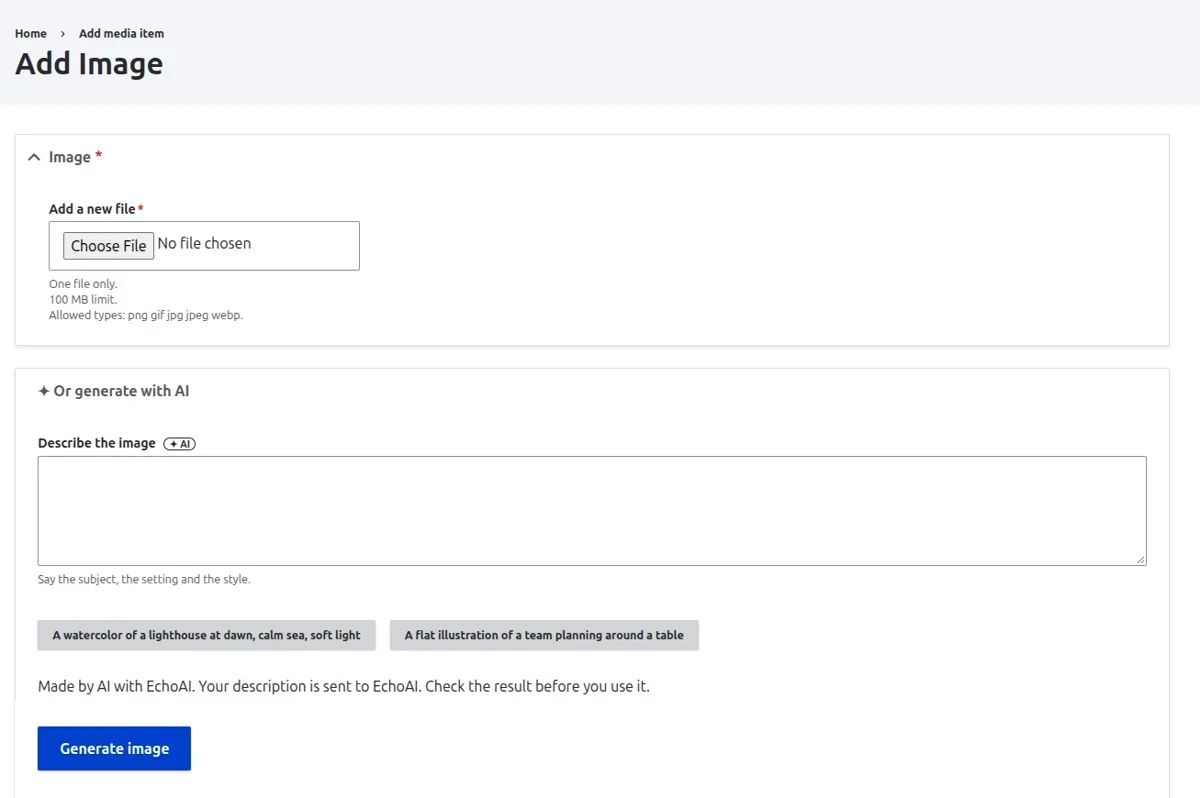
Core's Add media page
Core's Add media page (/media/add/image, /media/add/svg_image) keeps
its file upload, and shows the generator below it, introduced as Or generate
with AI. Generating fills the source field, the name and the alternative
text; check them, then Save. Editors without Generate media with AI see
core's form as it is.
Content > Media also has a Generate media with AI button beside
Add media, for users with Generate media with AI and at least one media
type with a generator they can create. With one such type it opens its Add
media page; with more, core's Add media list shows those types only
(/media/add?ai=1).
Where files go
A generated file is saved where the source field saves uploads, with its tokens, unless the AI Media settings set a File directory. It must be under the field's maximum upload size and the AI Media Maximum file size.
Turning a generator off
Clearing Enabled in the Generators table of the settings hides a generator's tab everywhere and refuses to generate with it, without touching the media types or the media already generated.
Upgrading from 1.0.0-alpha1
1.0.0-alpha1 had its own media sources, "Image generated with AI" and "Video generated with AI". They are gone, with no upgrade path while the module is in alpha. Before updating, delete the media types that use them (and their media), update, then choose the media type of each generator on the settings page.